How to set up for Connecteam
Connecteam is an Advanced Module
Learn more about Connecteam here
To establish a seamless data flow for rostering and scheduling, both Odyssey and Connecteam require some set up steps, outlined below.
This ensures that scheduling updates made within Connecteam automatically synchronize with employee, movement and vehicle data in Odyssey, maintaining data integrity and streamlining critical operational processes.
In Odyssey
- Set up the Connecteam API in Odyssey's system settings
- Learn more about setting up the API here. This step activates/allows the integration.
2. Define which trail/trails will use Rostering
- From the Main Menu | Settings | Company Settings | Trails (L1) | Depot tab,
- in the Rostering SchedulerID field, enter the ID number which has been copied from Connecteam
- a different ID number is required for each trail using Connecteam

- Drivers and Guides
Drivers:
- Drivers/Staff members who are set up in Connecteam need to have a ID number assigned to them in Odyssey
- From the Main Menu | Resources | Staffing | Shuttle Drivers List | (select a Driver) | Details tab
- Ensure there is a value for each employee entered in the CTUserID field.
- A unique ID must be entered for each employee.
- A check mark will appear in the Shuttle Drivers list, beside this user's name, once the ID has been entered.
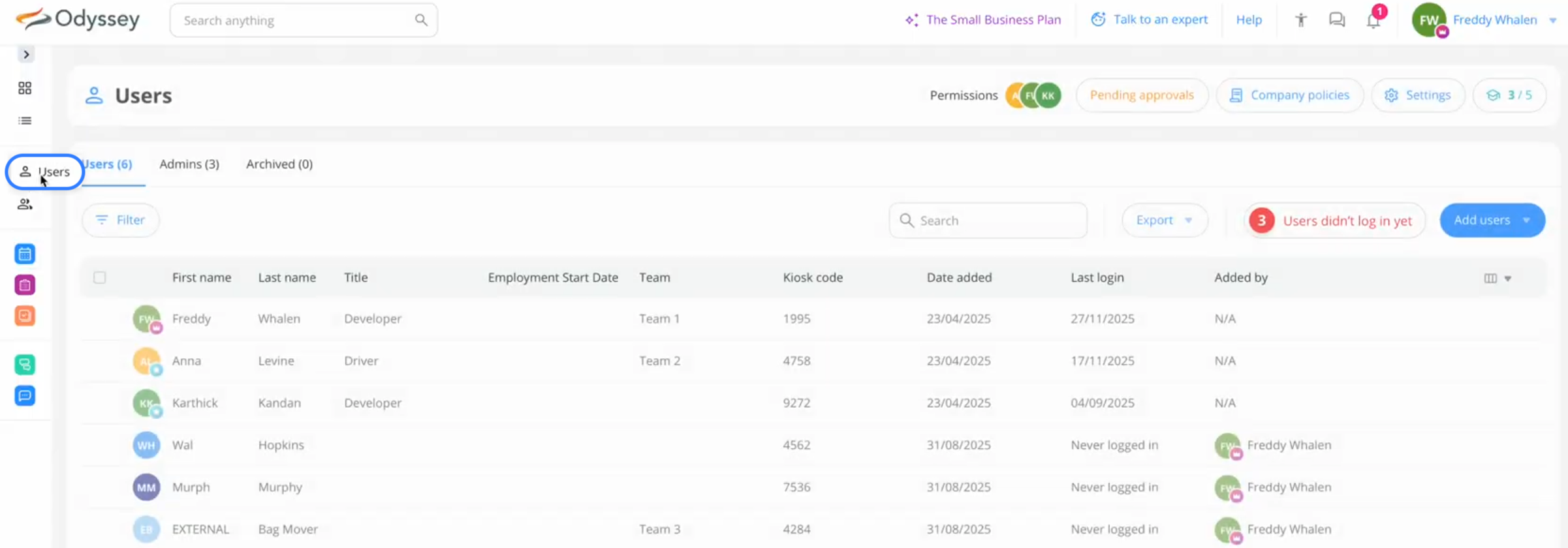
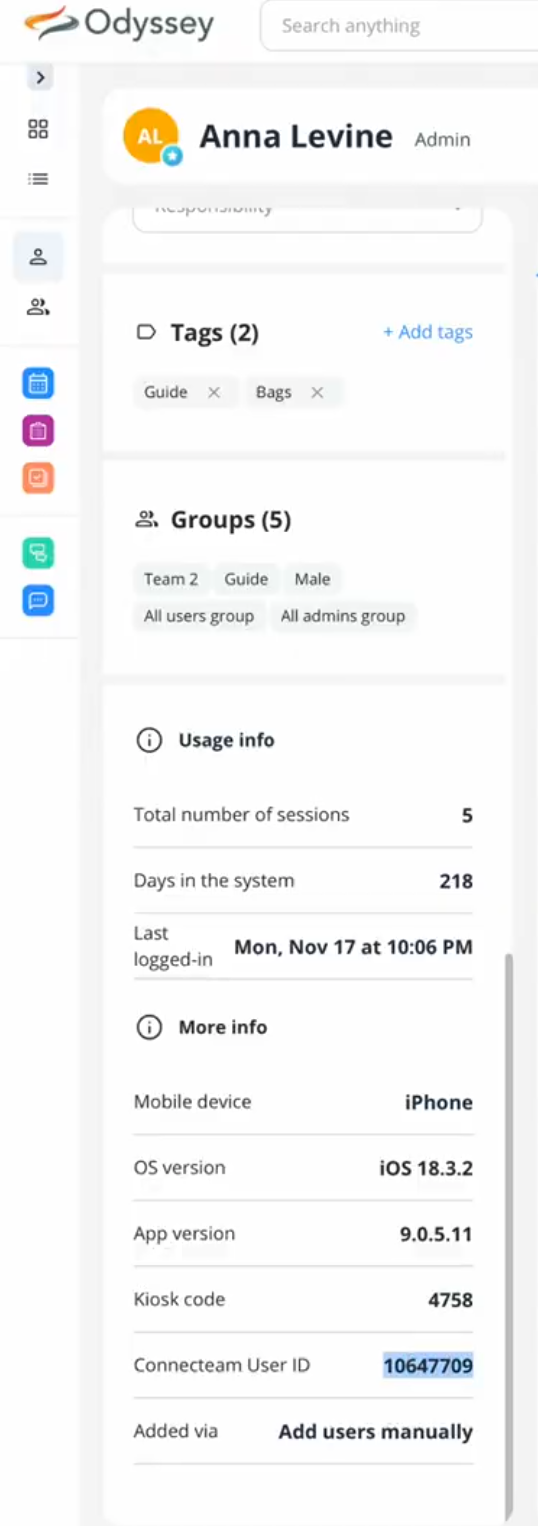
- find the code in Connecteam here: Main Menu | Users | select a user | scroll to bottom to find Connecteam User ID | copy and paste this into Odyssey's CTUserID field


Guides:
- Guides who are set up in Connecteam need to have a ID number assigned to them in Odyssey
- From the Main Menu | Resources | Staffing | Guide List | (select a Guide) | Details tab
- Ensure there is a value for each employee entered in the CTUserID field.
- A unique ID must be entered for each guide.
- A check mark will appear in the Guide list, beside this user's name, once the ID has been entered.
- find the code in Connecteam here: Main Menu | Users | select a user | scroll to bottom to find Connecteam User ID | copy and paste this into Odyssey's CTUserID field
- Vehicles
- From the Main Menu | Resources | Vehicles select Vehicle

- Search or select a Vehicle from the list
-
Enter the ID number for Vehicles provided by Odyssey in the Rostering ID field
A different ID number is required for each Vehicle used in Connecteam

- Suppliers
- From the Main Menu | Resources, filter by Transport provider and select a Provider

- Navigate to the Movement Info Tab and add the Rostering UserID and VehicleID

In Connecteam
Company settings
- Go to the top right hand corner of the window, where the logged in user's name is, and choose Settings from the drop down list

- Enter any Company settings required

- From Connecteam's Main Menu, choose API and Integrations
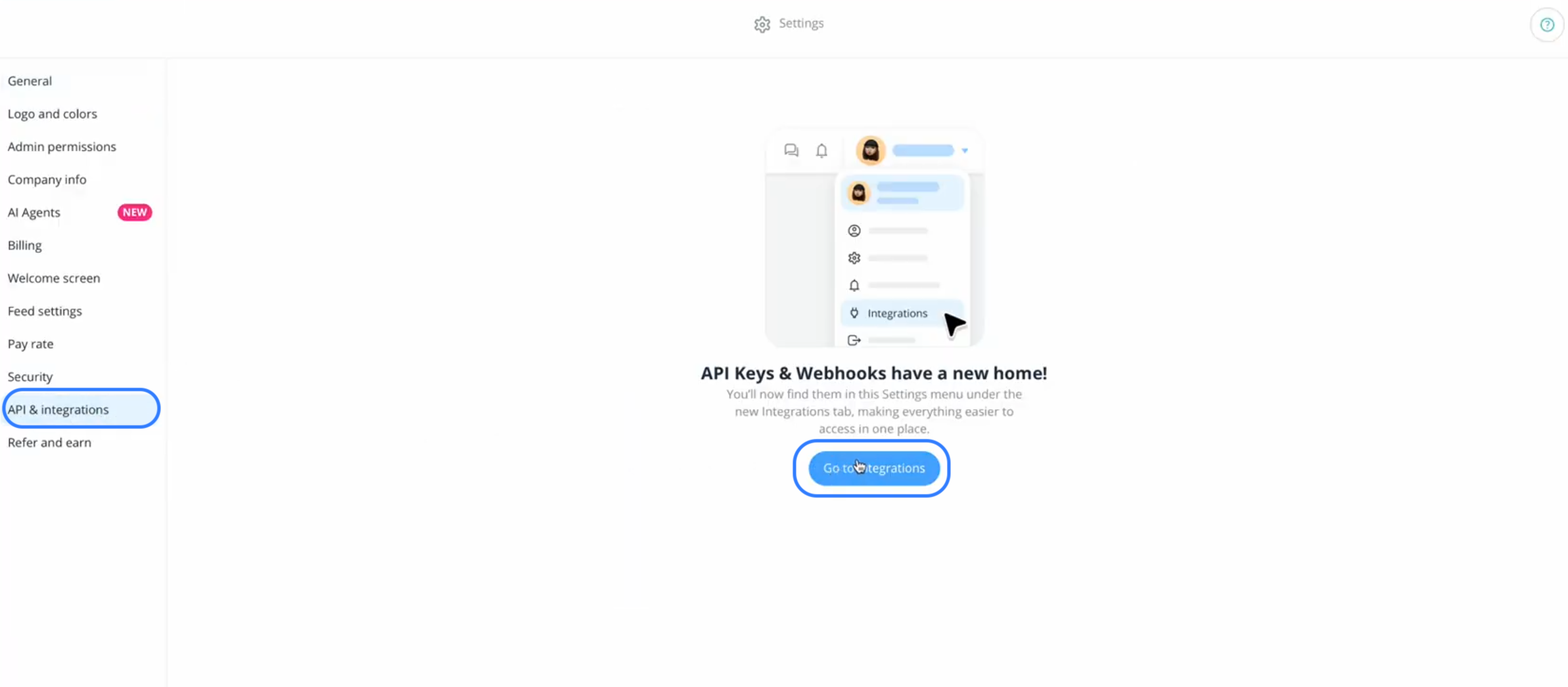
- From the Integrations Menu, choose API Keys
- Copy the circled data into Odyssey's API Rostering settings

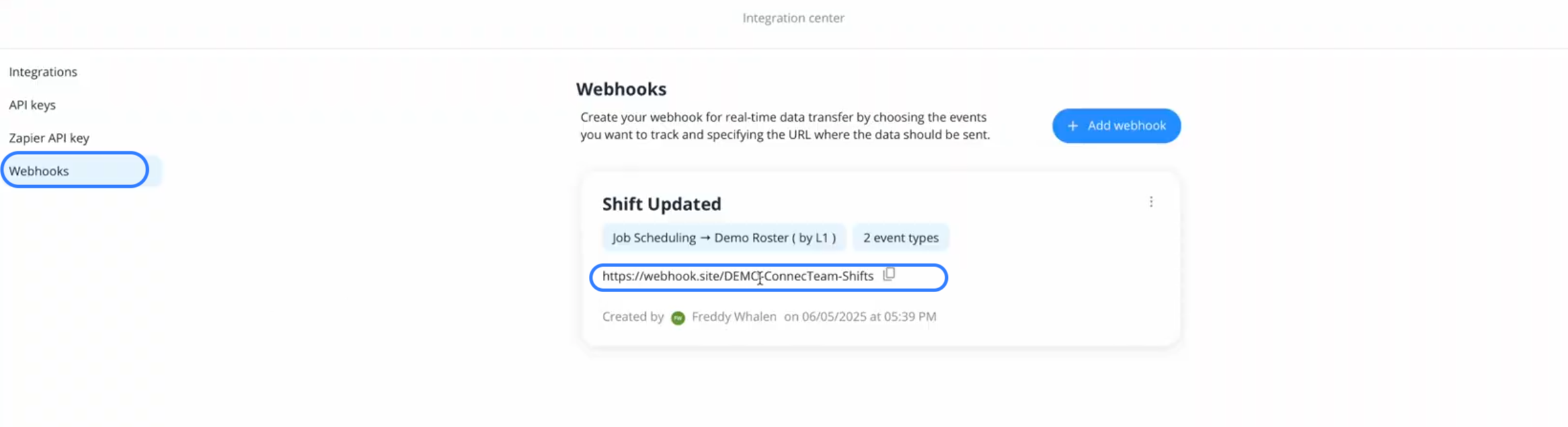
- From the Integrations Menu, choose Webhooks
- Copy the circled data into Odyssey's Webhooks settings
- this determines that when specific actions are taken inside Connecteam, the data that's appropriate flows back into Odyssey, and Odyssey gets updated.
Calendars
Our DEMO solution only has one Rostering Calendar, but we recommend that if Rostering is managed at differnet locations, then each Trail or Level 1 setting in Odyssey (e.g. Alps to Ocean, Great Taste Trail, West Coast Wilderness) could have it's own rostering calendar. Alternatively, if all Rostering is managed in one location, then one rostering calender would be sufficient.

For team members
Manually create records for each team member, matching the names with those in Odyssey
- We also recommend that you set up one "External Bag Moving Supplier" record as a team member in Connecteam, as part of your initial setup. Then any bag movement that you have assigned to ANY of your EXTERNAL bag movement suppliers can be assigned to that one "External Bag Moving Supplier" in Connecteam.

It could also be a helpful tool to set up External Bag movement companies as "Vehicles" so that once bag movements are assigned to the one External Bag Moving Supplier, the Depot Manager can assign each mover as a vehicle, to help identify which external Bag moving supplier is moving these bags.

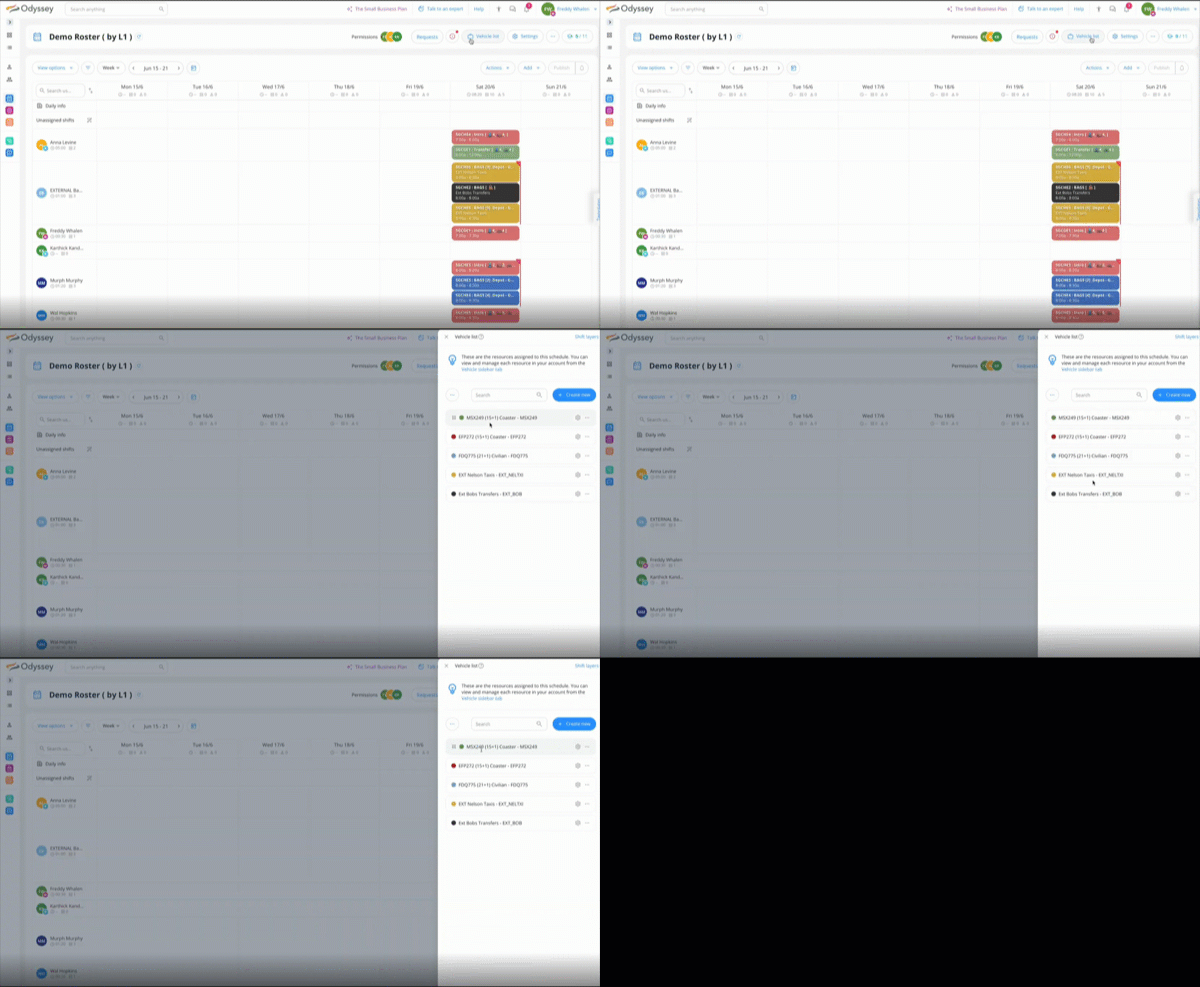
Set up vehicles
- From Connecteam's | Vehicle list, choose Create New
- add the vehicle's registration number, description, capacity, and select a specific colour