
Creating a Tour using Bundles
Creating a Tour Using Bundle Masters
Before you begin to add bundles into a tour, you need to have created some bundles.
Learn about creating bundles here
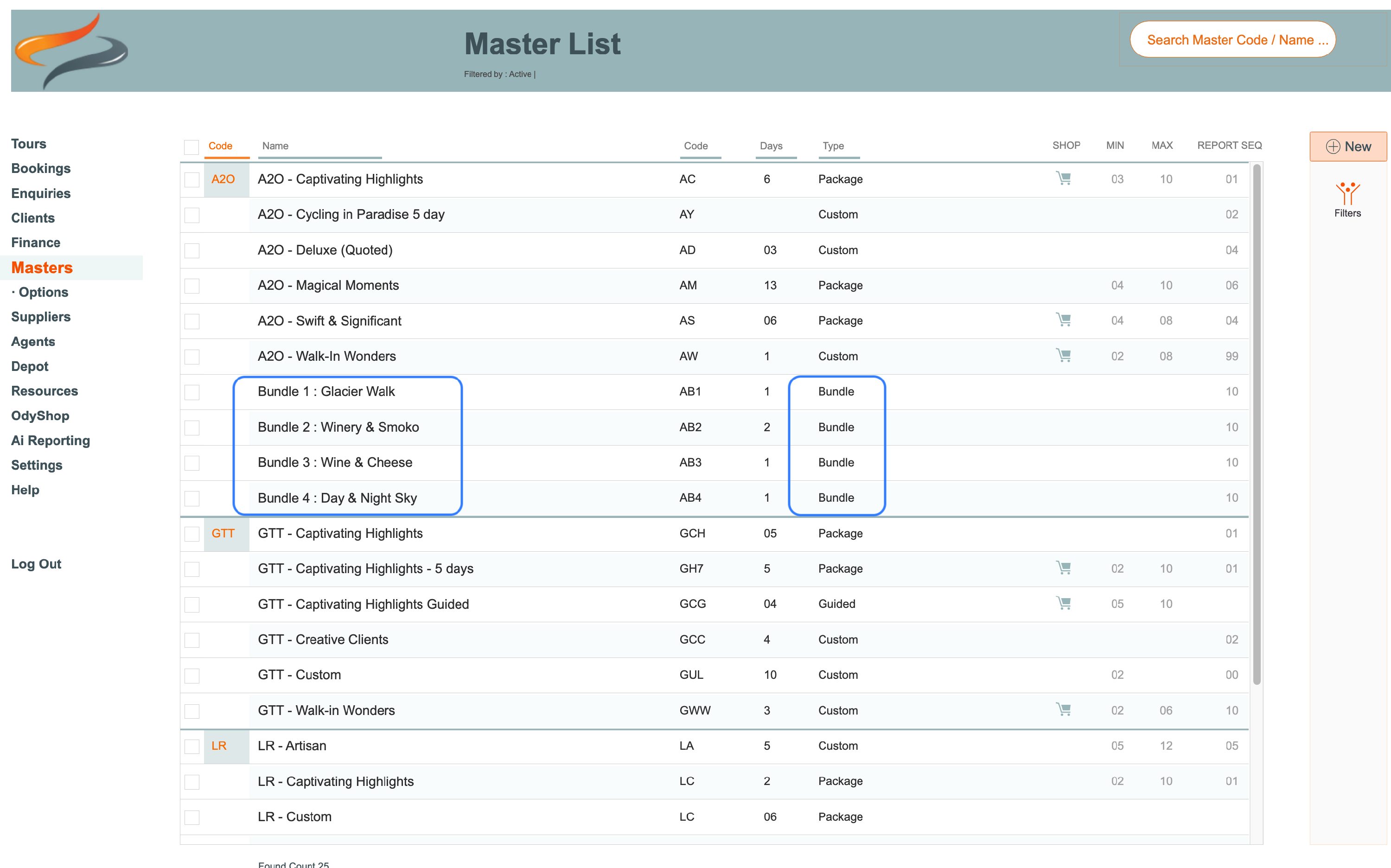
Below is a list of Bundle Masters. By inserting a range of different bundles into a Tour, you are able to build a highly bespoke tour for your client. Any of these bundle masters can optionally be inserted into a bespoke, personally built tour for a client, in any order the client prefers. And the order of the bundles can be swapped around to meet the client's needs.
Step 1: Begin by creating a new tour
This new tour you create could be based off either:
- a standard package, to which you would like to add an additional bonus day at the end
- or a Master you have built specifically for adding these bundles in to, perhaps with five or six days in them already.
- This master should have existing daily records
- and can also have accommodation records, etc
- Clients can be added to the tour before you begin as well; and if the bundle Master says "Include in Bookings" on any of the records, then the clients will automatically be assigned to those records.
Step 2: You are now ready to insert a bundle, or several bundles, into this tour
- From the Tour | Daily Content | Locations tab
- Click the Insert a Bundle button
- The Insert a Bundle button will not appear if your Odyssey file has not had any Bundles created yet

- A pop up window appears, showing you on the left hand side a list of the daily records you already have in this tour, and on the right hand side, a list of available bundles

- Drag and drop any bundle from the right hand side of the screen, to any daily record on the left hand side
- Bundles can be applied in whatever sequence you wish
- Use as many or as few bundles as you wish, not every daily record needs to be used - perhaps you will add some content manually to these days
- If a two day bundle has been dragged into a daily record, then the second day will not be "free" to drag another bundle into
- Click Apply when you are finished

- Odyssey then goes through the usual process of finding all of the elements of each of those bundles, and populates the tour level records accordingly.
- NOTE: Any Itinerary am/pm/end of day content, will be overwritten with the content of this bundle
- If the Master has said Apply to all bookings, then the existing clients on this tour will have each of these records assigned to them.
- The tour now has all of the components of the bundles added to it!
- Here, you can see that Itinerary Content has been pulled through from each of the bundles into our Tour, and finance values have been added, and Activities have been added.


Editing a Tour with Bundle Masters
Great, you have successfully learnt how to use Bundle Masters in a Tour!
But what happens when your clients come back and say they would like their days switched around a little bit? (Or a lot!) Great news, these bundles are editable!
- Now that we have added bundles to our tour, the Insert a Bundle button has been replaced with Edit a Bundle

- In this example, the client does not wish to have the Night Sky bundle on Day 3, so we are going to click the x button beside it to remove it

- the client would prefer to have the Night Sky trip on their last day, so we can drag it onto the last day now

- Be sure to review the Itinerary content for the effected days, if you are inserting a bundle into a day that already had existing Itinerary content.